
What Is a Child Theme and Do You Actually Need One?
What Is a Child Theme and Do You Actually Need One?
Direct answer: A child theme is a small WordPress theme that inherits everything — design, templates, functions — from a parent theme, and lets you override just the parts you want to change. Its one job is protection: when the parent theme updates, your customizations survive, because they live in the child theme, not in the parent’s files. If you have ever edited a theme file directly and lost the change on the next update, a child theme is the fix. If you only change things through the Customizer and plugins, you probably do not need one — yet.
What exactly is a child theme?
A child theme is a WordPress theme with a parent. It contains almost nothing on its own — typically just two files, style.css and functions.php — and it declares in its stylesheet header which theme is its parent. WordPress then loads the parent theme first and layers the child theme on top: the parent supplies the design and functionality, and the child supplies your overrides.
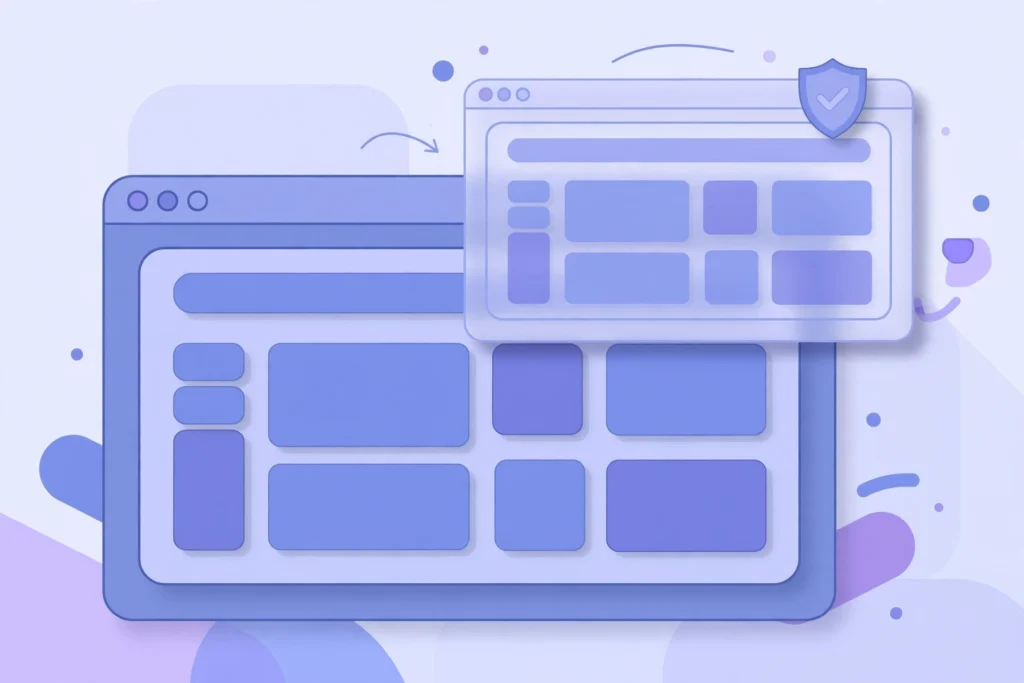
Think of it like a transparent sheet laid over a printed page. The printed page is the parent theme; anything you write on the sheet shows in place of what is underneath, and everything you leave blank still shows the original. If the printer issues a new edition of the page, your sheet still fits — your notes survive the update.
The parent-child relationship is one-way. A child theme can override the parent, but the parent never reads the child’s files — and a theme can only have one parent: WordPress supports just one level of inheritance.
Why do child themes exist?
Child themes exist because themes get updated, and direct edits do not survive updates. Every theme update replaces the theme’s files with new versions. If you edited header.php to add a phone number, or style.css to change a button color, that edit is gone the moment you click update — replaced by the fresh file from the theme author.
This creates a dilemma without a child theme: either never update your theme (and miss security fixes, bug fixes, and new features), or update it and lose your customizations. Both options are bad — an outdated theme is a security risk, and re-applying lost edits after every update is slow and error-prone. The child theme breaks the dilemma: the parent updates normally and stays secure, while your edits live in the child’s files, which updates never touch.
Do you actually need a child theme?
It depends entirely on how you customize your site. Be honest about which group you are in:
| How you customize | Need a child theme? |
|---|---|
| Only the Customizer (colors, fonts, menus, widgets) | No |
| Only plugins (contact forms, sliders, SEO) | No |
| A CSS plugin or the Customizer’s “Additional CSS” box | No |
| Editing theme files (PHP templates, functions.php) | Yes |
| Adding custom PHP, shortcodes, or hooks | Yes |
| Overriding theme templates (single post, archive, header) | Yes |
The rule is simple: if your changes live in files, they need a child theme. If they live in the database, they do not. Settings made in the Customizer, the block editor, and most plugins are stored in the database, and theme updates do not touch the database. File edits are the only kind that updates destroy.
There is a gray zone worth knowing about. The Customizer’s “Additional CSS” box is convenient and survives updates, but it holds only CSS, gets unwieldy past a few dozen rules, and cannot touch PHP or templates. Many sites start there and graduate to a child theme when the CSS grows or when they need their first PHP change. Our guide to how many plugins is too many covers the related question of when a small code snippet should replace a plugin — and a child theme is where that snippet should live.
How does a child theme override the parent?
WordPress resolves every template file by checking the child theme first, then the parent. If your child theme contains a file named single.php, WordPress uses yours; if it does not, WordPress falls back to the parent’s. Same filename, and yours wins.
Styles work a little differently. The child theme’s style.css loads in addition to the parent’s stylesheet, and because it loads later, its rules win when both target the same element. You do not copy the parent’s whole stylesheet — you write only the rules you want to change.
Functions are the exception to the fallback rule. The child’s functions.php loads before the parent’s, and both files run — so you cannot “replace” a parent function by defining one with the same name, or PHP will throw a fatal error for redeclaring it. Instead, well-written parent themes wrap their functions in if ( ! function_exists() ) checks, which let the child’s earlier definition win, or provide hooks and filters you can use from the child theme.
How do you create a child theme?
You need two files in a new folder inside wp-content/themes/. The folder name is usually the parent’s folder name plus -child — for example, twentytwentyfive-child.
1. style.css — the header tells WordPress this is a child theme and names the parent:
/*
Theme Name: Twenty Twenty-Five Child
Template: twentytwentyfive
*/
The Template line is the critical part: it must match the parent theme’s folder name exactly, including case. Everything else in the header (description, version, author) is optional but good practice.
2. functions.php — this loads the parent’s stylesheet, because a child theme does not load it automatically:
<?php
add_action( 'wp_enqueue_scripts', function() {
    wp_enqueue_style( 'parent-style',
        get_template_directory_uri() . '/style.css' );
} );
That is a working child theme. Activate it under Appearance → Themes, and your site looks identical — because nothing is overridden yet. Then add your changes: a CSS rule in style.css, a template file copied from the parent and edited, or a function in functions.php. Test on a staging copy first if your site earns money; a typo in functions.php can white-screen the site until it is fixed.
Several plugins can generate a child theme for you with one click, which is fine for the scaffolding — but read the two files they create, so you understand what you own.
What mistakes should you avoid?
Copying the parent’s entire stylesheet into the child. This is the most common beginner mistake, and it quietly breaks the update mechanism. If your child theme contains a full copy of the parent’s CSS, then when the parent updates its styles — a bug fix, a new layout, a spacing change — your stale copy overrides the new rules, and the site keeps the old behavior. Override only the rules you actually change.
Copying templates “just in case.” Same problem, same reason: a copied template freezes at the version you copied it from. Copy a template only when you are actively changing it, and note which parent version you copied it from, so you can compare it after major updates.
Editing the parent theme anyway, “just this once.” A one-line fix in the parent is tempting and it will vanish at the next update. If the fix belongs anywhere, it belongs in the child theme — that is the entire point of having one.
Forgetting the child theme exists. Six months later, when something looks wrong after a parent update, check the child theme first. A stale template override is the usual suspect — compare your copy with the parent’s new version and merge the changes.
What are the alternatives to a child theme?
Child themes are the standard answer, but they are not the only one. Which alternative fits depends on what you are changing:
- Customizer “Additional CSS” — best for a handful of style tweaks. Survives updates, needs no files, but holds CSS only.
- A code-snippets plugin — best for small PHP additions, like a shortcode or a filter. The snippet lives in the database, survives theme updates, and can be toggled on and off. For a few lines of PHP, this is often simpler than a child theme.
- A custom plugin for functionality — best when your addition is functionality, not design. If the code should survive a theme change as well as a theme update, it belongs in a plugin. A custom post type is functionality; a header layout is design.
- A block theme with global styles — modern block themes store much of their design in the database via the Site Editor, so file-level customization is rarely needed. If you use a block theme and never touch PHP, you may never need a child theme at all.
- A theme with built-in customization options — some themes, particularly purpose-built ones for a niche, include the hooks, options, and layouts most users need. When choosing a theme, check what it lets you change without code: browsing the theme catalog by category shows what each design includes before you commit.
The decision is practical, not ideological. If you edit theme files, use a child theme. If you only tweak CSS, the Customizer is enough. If you add functionality, consider a plugin. The expensive mistake is editing the parent theme directly — whichever alternative you choose, that is the one option to avoid.
Frequently asked questions
Will a child theme slow down my site?
No, not measurably. WordPress checks the child theme first for each template, which is a trivial filesystem lookup. A child theme with a few overrides costs nothing you can measure.
Can I create a child theme for any WordPress theme?
Yes, any well-coded theme can be a parent. Themes that wrap functions in function_exists() checks and use hooks are the easiest to extend; poorly coded themes may resist overriding in places.
What happens if I switch parent themes?
The child theme stops working — it is tied to one parent. If you change themes, you need a new child theme for the new parent, and you must move your customizations across by hand.
Do I need a child theme if I use Elementor?
Usually not. Elementor stores its designs in the database, so theme updates do not touch them. You only need a child theme if you also edit the theme’s PHP files or add custom code — see our comparison of Elementor vs Gutenberg for how the two builders differ.
Can a child theme break my site?
Only in the same way any code can: a PHP error in the child’s functions.php can white-screen the site. Test changes on staging first, keep backups, and a child theme is far safer than editing the parent — because you can always deactivate the child and the parent works untouched.
Related reading: our guide to speeding up a slow WordPress site for measuring what actually slows a site down, and the theme catalog if you are choosing a theme that needs less customization in the first place.


