
How to Secure Your WordPress Site From Hackers (Checklist)
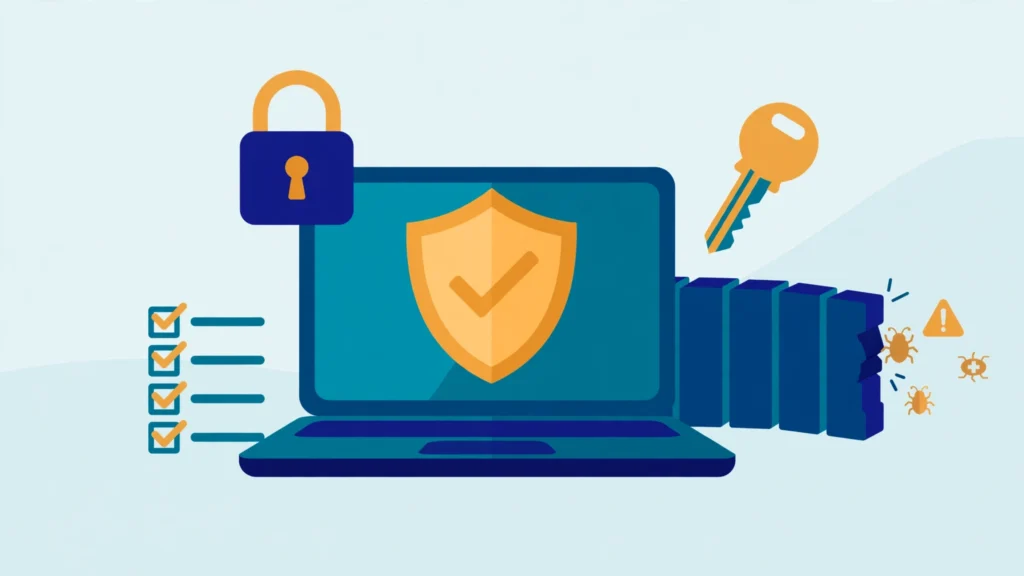
How to Secure Your WordPress Site From Hackers (Checklist)
Direct answer: Most WordPress sites are not hacked through clever server attacks. They are hacked through outdated plugins, weak passwords, and nulled themes — the boring basics. Securing a WordPress site means keeping WordPress core, themes, and plugins updated, using a strong unique password with two-factor authentication, installing a security plugin that blocks brute-force logins and scans for malware, and keeping a backup you can restore. Work through the checklist below once, then keep the habits that matter — updates and backups — on a schedule, and your site will be harder to break into than the vast majority of WordPress sites online.
Why do hackers target WordPress sites at all?
WordPress powers more than 40% of all websites, which makes it the biggest target on the web — and also the most attacked by automated bots. Most attacks are not personal. Nobody picks your site out and studies it. Bots scan millions of sites looking for a known vulnerability: an old plugin version, a weak admin password, a file upload form that accepts anything. When they find one, they exploit it automatically, often within hours of the vulnerability becoming public.
What do they want? Rarely your content. Hacked WordPress sites are usually turned into spam machines: hidden pages selling fake products, links injected into your posts, redirects that send your visitors to scam sites, or a quiet foothold used to attack other servers. In every case, the damage is the same: your search rankings collapse, Google may flag your site as dangerous, your visitors lose trust, and cleaning up takes far longer than preventing it would have.
The defences are mostly simple, mostly free, and mostly one-time work — a short list of habits, covered below in order of impact.
Why are updates the single most important habit?
Outdated software is the number one way WordPress sites get hacked, by a wide margin. When a vulnerability is found in a plugin, the developer patches it and releases an update. The patch notes effectively announce the hole to the world — including to the bots. Every site still running the old version is now a known, open target. The window between a patch being released and a bot trying the exploit is often measured in hours, not weeks.
That is why updates are not optional maintenance; they are the core of WordPress security. Keep WordPress core, every theme, and every plugin current. Enable automatic updates for minor WordPress core releases (WordPress does this by default since version 5.5) and consider auto-updates for plugins you trust, especially security and form plugins. If you are nervous about an update breaking something, that is what backups and staging sites are for — not a reason to stay on a vulnerable version.
Just as important: delete what you do not use. A deactivated plugin with a known vulnerability can still be exploited, because its files are still on the server. Audit your plugin list twice a year and remove anything you no longer need. Our guide to how many WordPress plugins is too many explains how to judge whether a plugin earns its place — and the fewer plugins you run, the smaller your attack surface.
How do you lock down the login page?
The WordPress login page is the most attacked URL on the internet. Bots try thousands of username and password combinations against /wp-login.php every day, in what is called a brute-force attack. Three changes make this attack nearly useless against your site.
First, use a strong, unique password for every admin account — at least 16 characters, random, stored in a password manager, and never reused anywhere else. Second, never use “admin” as a username. It is the first username every bot tries; using your own name or a made-up handle removes half the attacker’s job. If your site still has an “admin” user, create a new administrator account with a different name, log in as the new account, and delete the old one (assigning its posts to the new account).
Third, turn on two-factor authentication (2FA). With 2FA, a stolen password is not enough — the attacker also needs a one-time code from your phone. Several free plugins add 2FA to WordPress, and many hosts offer it as part of their security package. This one change defeats the vast majority of brute-force and credential-stuffing attacks outright. It is the highest-value security step on this page relative to the effort involved.
Two more settings help. Limit login attempts, so an IP address is locked out after a handful of failed tries — most security plugins do this. And change the login URL if your security plugin offers it: moving the login page from /wp-login.php to a custom address removes your site from the automated scans that only check the default address, which cuts attack volume dramatically.
Which plugins and themes are safe to use?
Your theme and plugins are code running on your server with full access to your site. A bad one is not a cosmetic problem; it is a security hole. The rule is simple: install themes and plugins only from wordpress.org, from the developer’s own site, or from a reputable marketplace — and never install a nulled theme or plugin.
Nulled themes — premium themes offered free on shady download sites — are one of the most common sources of hacked WordPress sites. The “free” copy almost always contains injected code: a backdoor that lets the distributor into your site whenever they want, hidden spam links, or a script that redirects your visitors. You would never notice it until Google flags your site or your host suspends your account. The money saved on a $50 theme is not worth the cleanup, which typically costs far more in time and lost rankings. If you need a premium theme, buy it from the developer or a legitimate marketplace. Our guide to free vs. premium WordPress themes explains what you actually get for the price, and why the legitimate route is the only sane one.
Before installing any plugin, check four things: the last update date (avoid anything not updated in over a year), the number of active installations (popular plugins get security attention), the WordPress version compatibility, and the reviews — especially recent ones mentioning security problems. And keep the count low. Every plugin is code you are trusting, and code you are responsible for updating.
Do you need a security plugin?
A good security plugin is worth installing, because it automates the defences you would otherwise have to configure by hand. The well-known options — Wordfence, Solid Security, Sucuri — all cover the same essentials, so pick one and configure it rather than agonising over which is best. Do not install two security plugins at once; they conflict with each other and can slow your site to a crawl.
What a security plugin should do for you:
- Firewall. Block known attack patterns before they reach WordPress, including SQL injection and cross-site scripting attempts.
- Malware scanning. Regularly compare your core files, themes, and plugins against known-good copies, and alert you when something has changed.
- Login protection. Limit login attempts, block brute-force attacks, and add two-factor authentication.
- File change alerts. Tell you when a file on your server has been modified, which is often the first sign of a compromise.
- Blocklist monitoring. Warn you if your site ends up on Google’s Safe Browsing list or a spam blocklist, so you find out before your visitors do.
The free tier of any major security plugin covers all of this. What matters is that the plugin is installed, configured, and actually sending you its alerts — a security plugin whose emails go to an inbox nobody reads is decoration.
What should your backup plan look like?
Backups do not prevent hacks. They are what makes a hack survivable. If your site is compromised, the cleanest fix is almost always the same: restore a known-good backup from before the attack, change all passwords, and update everything. Without a backup, you are paying someone to pick through infected files by hand — or rebuilding from scratch.
A sound backup plan has three properties. First, it is automatic: scheduled daily backups, not a manual export you remember to do once a quarter. Second, it is off-site: a copy stored somewhere other than your hosting account — your host’s backup plus a copy in cloud storage, or a backup plugin that sends copies to Google Drive, Dropbox, or Amazon S3. If the only backup lives on the same server that was hacked, it may be infected or deleted too. Third, it is tested: restore the backup to a staging site once, and confirm it actually works. A backup you have never restored is a hope, not a plan.
Most managed hosts include daily backups with one-click restore — our shared vs. managed hosting comparison covers the trade-offs. On shared hosting, use a reputable backup plugin and check that its schedule is actually running; a plugin whose cron job silently failed three months ago is worse than no plugin, because it gives you false confidence.
The full checklist, in order
Work through this list top to bottom. The first five items stop the overwhelming majority of attacks; the rest harden the site further.
| # | Action | Why it matters |
|---|---|---|
| 1 | Update WordPress core, all themes, and all plugins | Closes known vulnerabilities — the top attack vector |
| 2 | Turn on two-factor authentication for all admins | Makes stolen passwords useless |
| 3 | Use a strong unique password; remove the “admin” username | Defeats brute-force login attacks |
| 4 | Set up automatic daily backups stored off-site, and test a restore | Makes any hack recoverable in minutes |
| 5 | Install one security plugin and configure login limits + firewall | Blocks automated attacks and alerts you to changes |
| 6 | Delete unused themes and plugins | Removes code you are not watching |
| 7 | Never install nulled themes or plugins | The most common source of hidden backdoors |
| 8 | Use SSL (https) everywhere, with no mixed content | Encrypts logins and data in transit; Google expects it |
| 9 | Change the login URL and limit login attempts | Cuts automated attack volume sharply |
| 10 | Keep your host’s PHP version current | Old PHP versions stop receiving security fixes |
| 11 | Restrict file permissions; disable file editing in the dashboard | Stops an attacker who gets in from doing more damage |
| 12 | Check your site monthly: updates, backup log, security alerts | Catches problems while they are still small |
SSL (item 8) is effectively mandatory now: every reputable host offers a free certificate, and Google treats https as a ranking signal — but check for mixed content (an https page loading an http image or script) after switching, since it triggers browser warnings. File permissions (item 11) follow one principle: files should be readable, not writable, by the web server wherever possible, and the built-in theme/plugin file editor should be disabled — your security plugin can set this for you.
Finally, know the signs that something is already wrong: a sudden drop in Google traffic, unfamiliar admin users, posts or pages you did not create, redirects to strange sites, or a warning from Google Search Console or your host. If you see any of these, change all passwords immediately, restore your most recent clean backup, update everything, and run a full malware scan. If the problem persists after a restore, the infection may be in the database or the backup itself — at that point, hire a professional cleanup service rather than guessing. A one-time cleanup costs far less than months of lost rankings.
Security advice changes as threats evolve — check that your security plugin and your host’s guidance are current before relying on any single measure. No checklist makes a site unhackable; the goal is to make yours a harder target than the thousands of sites that skip these steps entirely.
Frequently asked questions
Can WordPress be hacked even with a security plugin?
Yes. A security plugin reduces risk; it does not eliminate it. If you install a vulnerable plugin and never update it, or use a weak password without two-factor authentication, no plugin can save you. Security is layers: updates, strong logins, a firewall, and backups together. Any one layer can fail; all of them failing at once is unlikely.
Is WordPress secure enough for a business website?
Yes, with the basics in place. WordPress powers a large share of business, news, and government sites. The platform itself is well maintained and its core is rarely the problem. The risk comes from the ecosystem around it — plugins, themes, and user habits — which is exactly what this checklist addresses.
How often should I update WordPress plugins?
As soon as updates appear, and at least weekly. Security updates should be applied immediately — the vulnerability they fix is often public the day the patch ships. Enable auto-updates for plugins you trust, and check the rest every week. If a plugin has not been updated by its developer in over a year, consider replacing it.
What is the most common cause of a hacked WordPress site?
Outdated plugins with known vulnerabilities, followed by weak or reused admin passwords, and nulled themes containing backdoors. Server-level attacks are comparatively rare for small sites. That is good news: the most common causes are also the easiest to prevent.
Should I hide my WordPress version?
It does not hurt, and most security plugins do it automatically — but do not treat it as real protection. Bots do not need your version number; they test the vulnerability directly. Hiding the version is a minor extra; keeping everything updated is the actual defence.
Related reading: our guide to speeding up a slow WordPress site, how many plugins is too many, and free vs. premium WordPress themes. If you are choosing a theme, browse our best WordPress themes collections to see what is available for your niche.


